
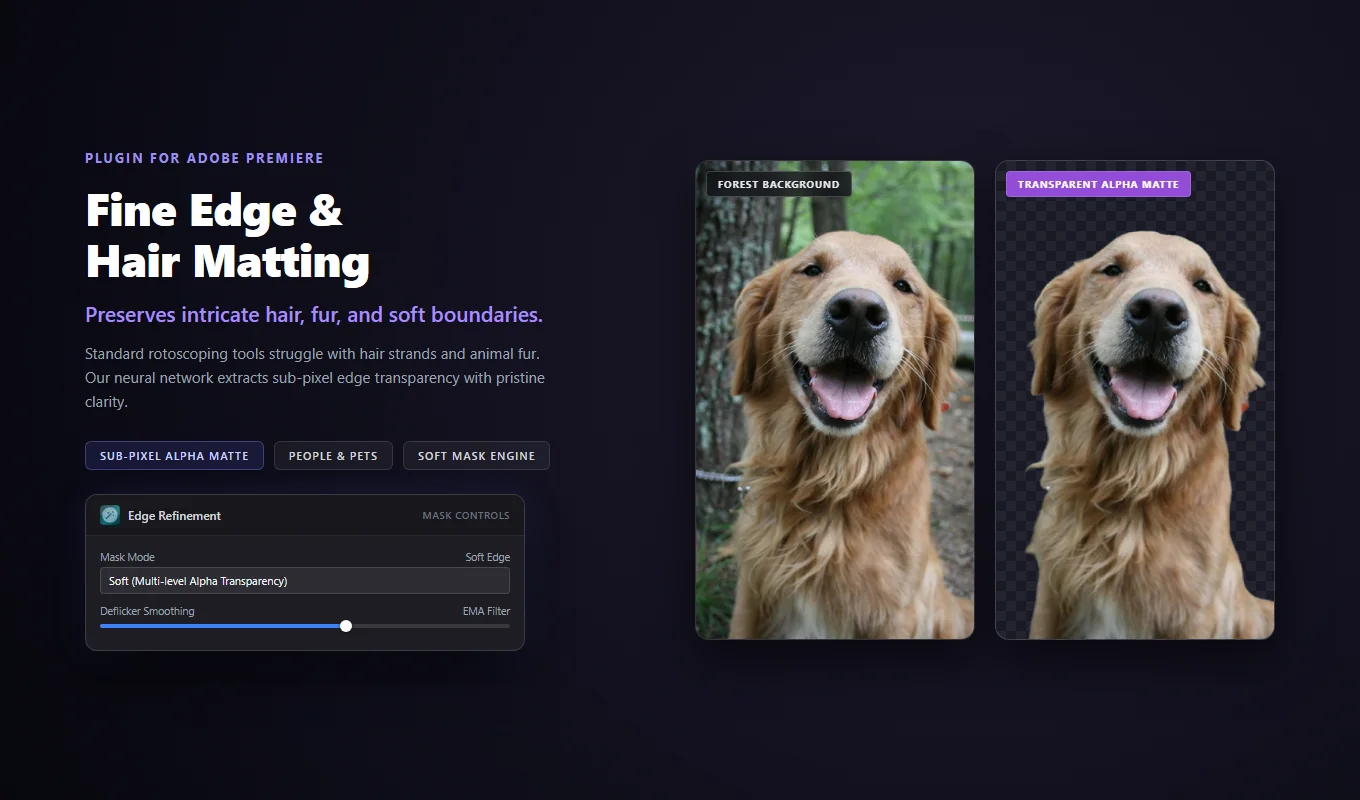
Choose the preset for the shot
Choose Portrait for a close-up of a person, or People for a wider shot. Set Quality to High · More detail and leave Model on From preset. If processing takes too long, compare the same short section at Medium · Balanced. Low · Faster is also available when speed is more important than fine detail.
For pets and other animals, choose General foreground · High quality (slow). Check the fur against the original surroundings: a dark dog against a bright wall is easier to separate than the same dog in dark grass.
Fine detail also depends on the recording. Out-of-focus hair, strong motion blur, and heavy compression leave less information to work with. Higher quality can help preserve detail, but it cannot recover every strand in every shot.
Keep Mask on Soft
In Advanced Settings, choose Mask: Soft. It preserves partly transparent detail such as hair. Binary uses Threshold to make a solid cutoff, which can give loose hair a harder outline.
- Click Preview first frame. Look around the hairline, ears, and fur.
- Use Edge Smoothing sparingly. Too much can remove small strands along with uneven edges.
- Add feather in small amounts. Stop before a soft halo appears around the subject.
- Try Mask Expansion. A small negative value can reduce a background fringe. A positive value includes more of the outer edge.
Raw shows the mask without refinement. Threshold, expansion, feather, smoothing, and deflicker do not affect Raw masks, so return to Soft before adjusting those controls.
Check hair during movement
Apply a short section with a head turn, wind in the hair, or an animal moving across the frame. Play it at normal speed. If the edge flickers, enable Mask Deflicker and compare it with None.
Try a small Temporal Window first. A longer window smooths changes across more nearby frames, but may also soften fast movement and fine strands. Check a few moments where the subject moves quickly before keeping the setting.
Then put the new background underneath the clip. Bright or saturated colors can make leftover color around the hair easier to see. A replacement with similar lighting usually blends more easily with the person or animal.
Check the edge at the size you will use
If the presenter will appear in a small corner of the video, check the cutout at that size. For a full-screen close-up, spend more time on the hairline and shoulders. Enlarging the preview far beyond the final size can distract from defects viewers will actually notice.
The current Premiere extension on Adobe Exchange supports Portrait, People, and General foreground presets with local GPU acceleration. It requires Premiere Pro 25.6.5 or later. The handbook explains each control, and the AI Background Remover page includes examples and installation links.
Ready to use it on your footage?
Explore AI Background Remover