
Background Removal
Removes backgrounds to create professional-looking results, face cams, and other effects.
Video background removal · No greenscreen needed
The AI Background Remover is an extension for Adobe Premiere Pro and After Effects that uses artificial intelligence to automatically create masks and remove video backgrounds.
New GPU-accelerated extension for Premiere 25.6.5+. Legacy version for older Premiere & After Effects.
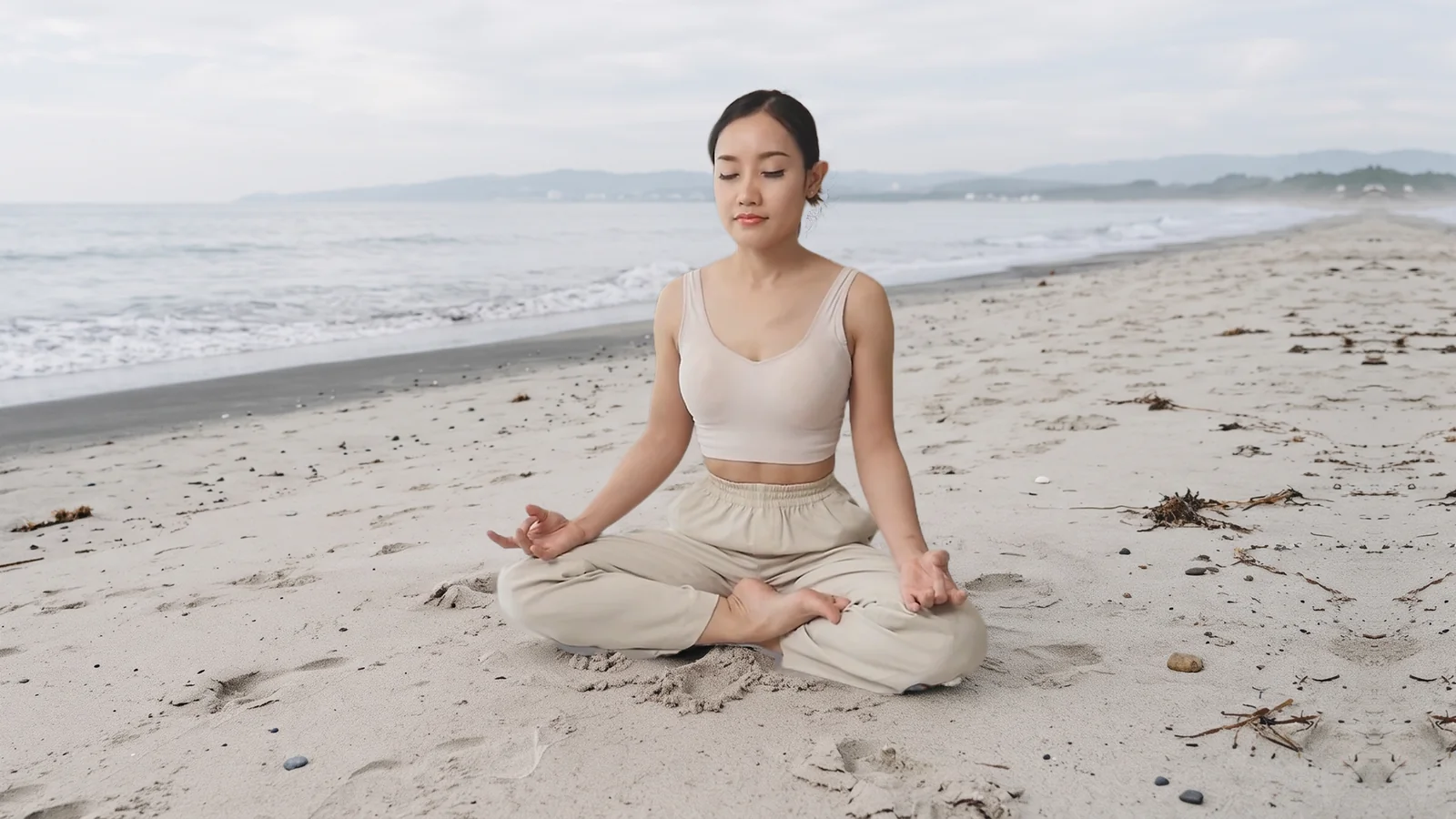
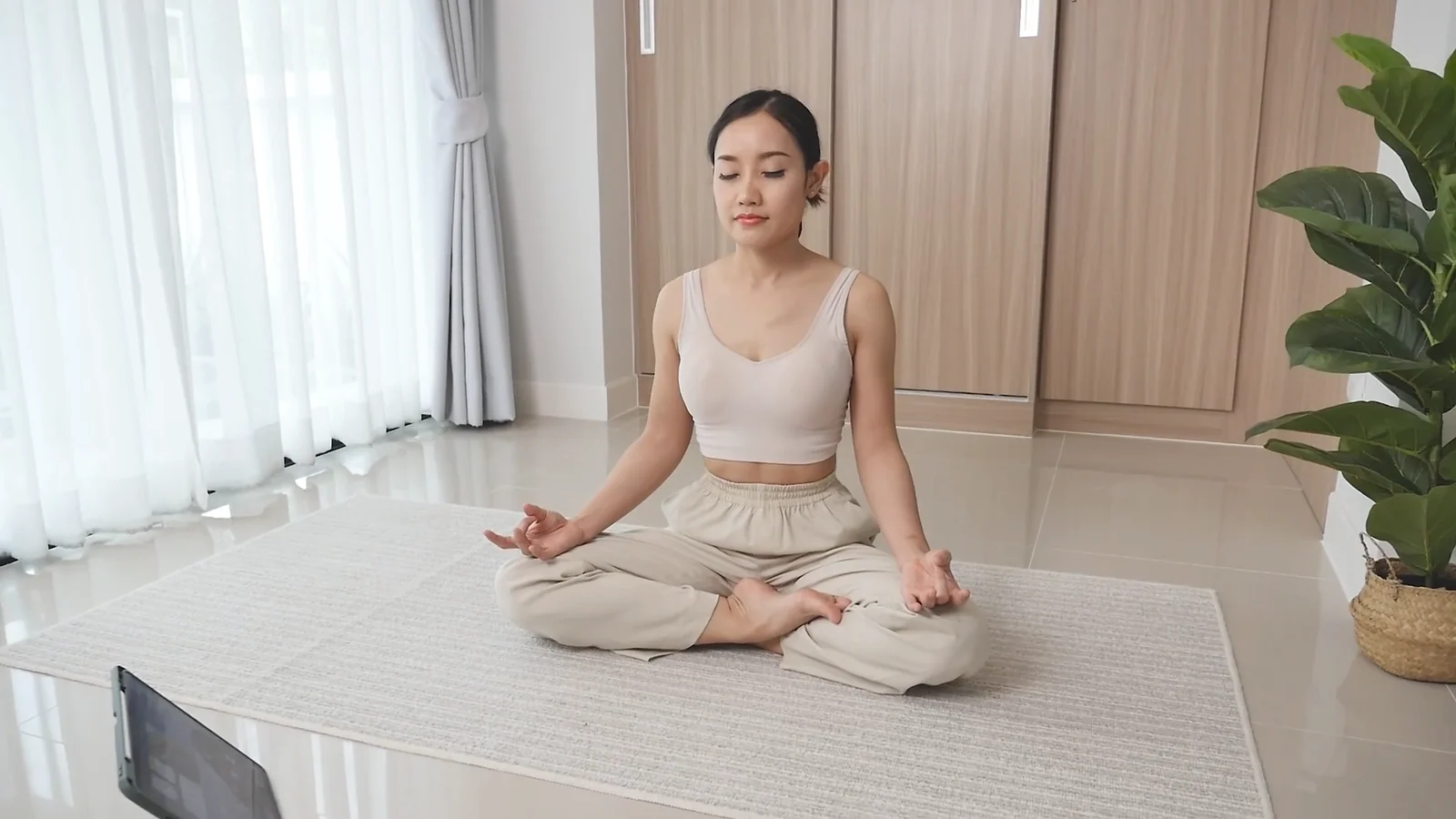 Original footageBackground replaced
Your footage. More possibilities.
With this extension, you can create professional-looking masks and bokeh effects with ease. Whether you’re working on social media, corporate videos, or gaming content, the plugin is designed to handle a wide range of backgrounds.
The new Premiere extension adds GPU acceleration and a choice of models for people and general foregrounds. Isolate a speaker, soften a busy setting, or put your subject somewhere completely different.
What’s new in the Premiere extensionBuilt for editing
Removes backgrounds to create professional-looking results, face cams, and other effects.
Blurs backgrounds to create professional-looking bokeh effects or simply hide the video background.
This feature ensures soft, natural-looking edges, even for high-resolution footage.
Analyzes frames to generate stable masks, reducing jittery edges while maintaining high analysis speed.
Optimized for fast processing, the new extension uses local GPU acceleration with CPU fallback.
Many parameters can be adjusted, like mask expansion, sensitivity, background blur strength, and even the algorithms used to suit your specific needs.
Allows separate color grading for subjects and backgrounds, enabling precise control over your video’s look. Use the generated matte with Premiere’s effects and color tools.
Apply effects like making the background black and white while keeping the subject in color for a dramatic look. Use your isolated subject with the tools already in Premiere.
Fine edges. Natural detail.
Hair, soft outlines and animal fur need more than a hard cutout. Soft masks preserve partial transparency, helping fine edges blend into their new surroundings.
Choose a people model for portraits. Switch to General foreground for animals and objects. Refine the edge without smoothing away the detail that makes your subject look natural.
A guide to hair and fur matting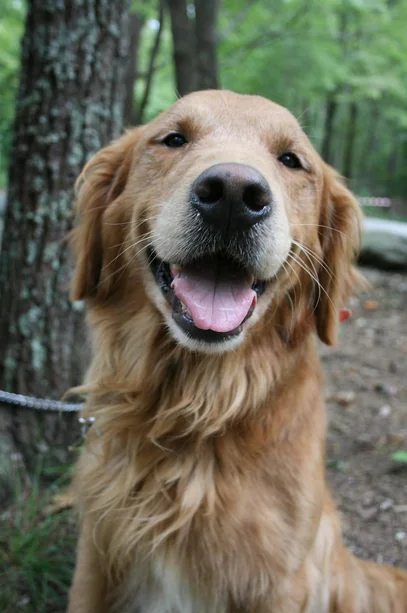 Original
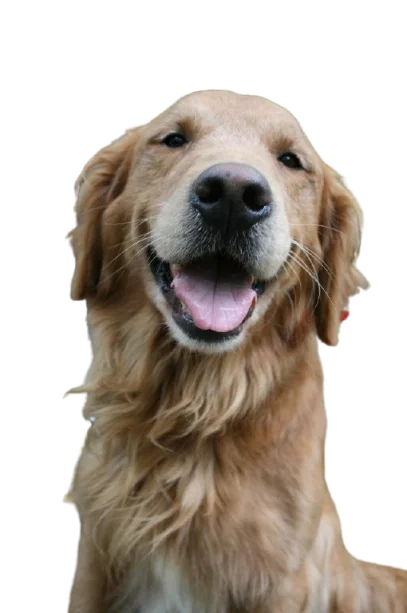 Foreground
Beyond portraits
Match the model to the subject, from a facecam to a product film.
Portrait and People help keep human subjects separated across video frames. Start with Portrait for close-ups or People for wider shots.
Isolate a personUse General foreground for animals. Soft masks help preserve partially transparent edges around fur.
Refine hair & furTry General foreground on products, objects and building silhouettes. Separation depends on how clearly the subject stands out.
Explore foreground modelsGeneral foreground detects prominent subjects; it does not select a specific object or class.
A little less distraction
Blurs backgrounds to create professional-looking bokeh effects or simply hide the video background. Choose Gaussian, Camera or Directional blur for the look that suits your footage.
Adjust applied blur and feather controls in Premiere without running the full analysis again. Use a transparent result to build a new scene, or a matte for your own effects.
Explore output modes
On your machine. In your workflow.
Analyze footage on your own computer with GPU acceleration. Auto selects a suitable backend and can fall back to CPU. No cloud upload before you can get to work.
How local GPU processing worksFrom clip to composite
Download and install from Adobe Exchange. Open the extension in your Premiere workspace.
Import your footage and select one video clip on the active timeline.
Choose the subject, quality and output. Preview the first frame to inspect the mask.
Click Apply Effect. Review in motion, then fine-tune the mask, feathering and background.
These steps describe the new Premiere extension. Older Premiere and After Effects workflows use the legacy extension.
For the videos you make
Create professional-looking tutorials by using a facecam or blurring or replacing backgrounds.
Enhance corporate presentations by isolating speakers from distracting backgrounds.
Produce eye-catching social media videos with clean, polished backgrounds.
Remove backgrounds and add facecams to your gameplay videos.
Reduces the time spent on manual masking and background removal.
Produces high-quality, clean video outputs suitable for professional use, hobbyists, and social media creators.
Featuring a user-friendly interface and customizable settings, it is suitable for both beginners and advanced users.
Compatible with various video types, including close-up shots, high-resolution footage, and complex backgrounds.
Choose your version
Keep your existing workflow, or move to the new GPU-accelerated Premiere extension.
Adobe Premiere 25.6.5 or later
Earlier Premiere versions & After Effects
Still using a Premiere release earlier than 25.6.5, including older 2025 releases? Keep the legacy version for that workflow. Check Adobe Exchange for its exact supported host versions.
Get the legacy version Compare versionsLearn the workflow
Isolate a person in Premiere Pro without a green screen. Choose a people preset, refine hair and edges, and place a new background behind your clip.
Read guideA practical Premiere Pro background removal workflow: choose the right subject preset, preview a clip, remove or blur the background, and refine the result.
Read guideLearn which subject presets and mask settings to try for hair and fur in Premiere Pro, with practical tips for soft edges, motion, halos, and background changes.
Read guideA few useful answers
Yes. AI Background Remover analyzes the foreground rather than a key color, so you can isolate a subject from ordinary footage. Preview the mask first: lighting, contrast and movement affect the result.
Use the new Vakago AI Background Remover for Premiere with Premiere 25.6.5 or later. The legacy AI Video Background Remover remains available for earlier Premiere versions and its After Effects workflows.
Soft masks retain partial transparency at fine edges. Use the people models for hair and General foreground for animal fur. Compare models and refine smoothing and expansion against your replacement background; results depend on the footage.
The General foreground model supports more than people, including animals, products, objects and mixed foregrounds. Try it for a building with a clear silhouette. It detects foreground; it does not select a specific object by name or guarantee separation of every scene.
The new extension runs AI locally. Auto prefers GPU acceleration and can fall back to CPU; GPU only and CPU are also available. Processing time depends on the model, resolution, clip length and hardware.
AI processing in the new extension happens on your computer. You do not upload your footage to a cloud inference service. Adobe Exchange installation and updates may require internet access.
Made for your Premiere workflow
Remove, blur or replace video backgrounds without a greenscreen.
Premiere 25.6.5 or later. Older Premiere or After Effects? Get the legacy version.