
Choose what should happen to the background
Open the Background Remover panel and choose a Mode for your edit:
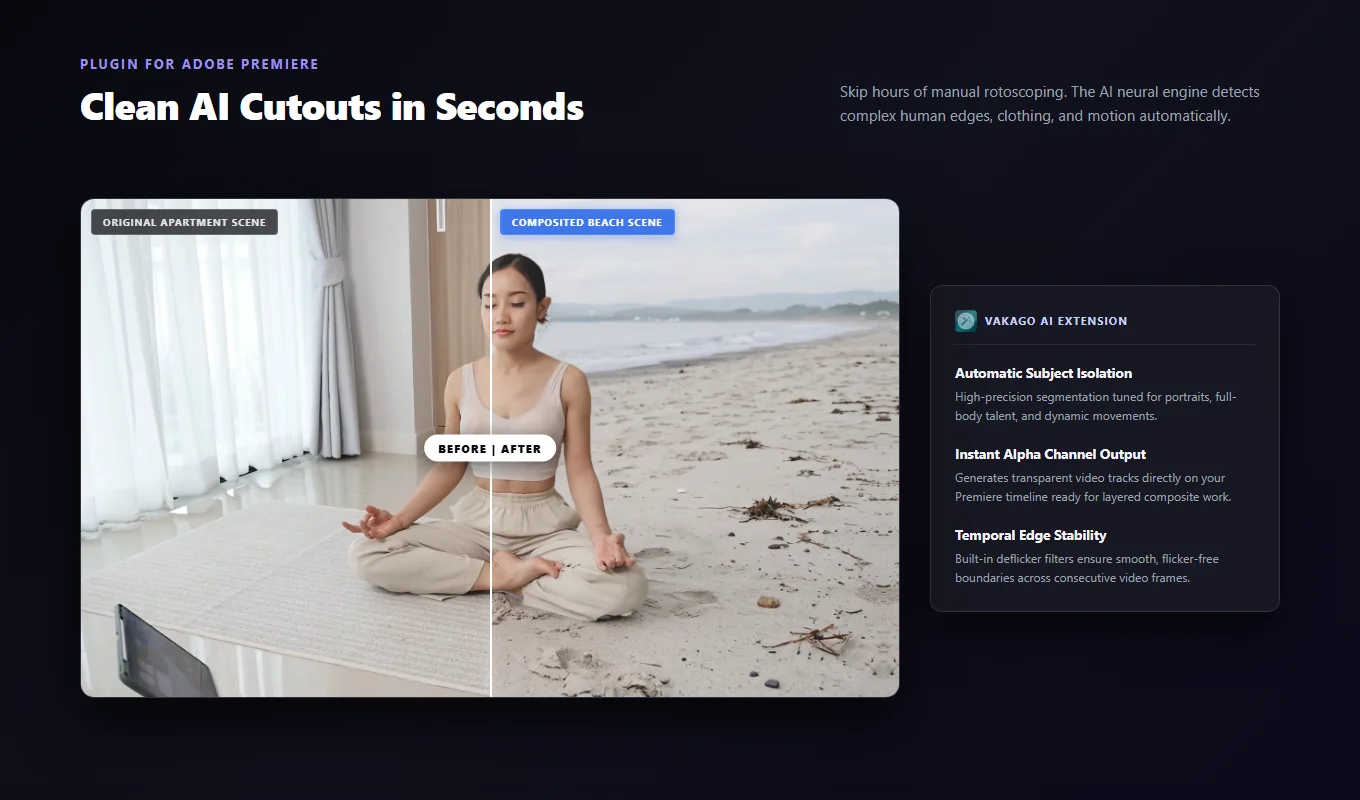
- Remove background: keep the subject and place a new image or video behind it. This works for a presenter over slides or a product over a graphic.
- Blur background: keep the original room or location while making it less distracting. Choose Gaussian, Camera, or Directional blur.
- Matte only: create a foreground mask if you want to use it in your own composite.
The extension processes the video locally and supports GPU acceleration with CPU fallback. Install it from Adobe Exchange for Premiere Pro 25.6.5 and later.
Remove the background step by step
- Trim and select the clip. Select one enabled source video clip in your timeline.
- Choose Subject. Portrait is for close-up people. People is for wider shots and full bodies. General foreground · High quality (slow) is for animals, products, objects, and mixed subjects.
- Choose Quality. Start with Medium · Balanced, or use High · More detail for finer edges. Low · Faster reduces detail for quicker processing. Leave Model on From preset.
- Choose Remove background and keep Mask on Soft. Click Preview first frame to check the cutout without changing the timeline.
- Click Apply Effect. Once processing is complete, add the replacement background on a lower video track.
Apply a few seconds first if the shot contains a lot of movement. The preview only shows one frame, so you still need to watch the processed clip to check the rest.
Use the preset for your subject
For an interview filmed close to the camera, choose Portrait. For someone walking through the frame or presenting at full length, choose People. The presets provide suitable settings for that framing; you can then adjust Quality without choosing an advanced model.
General foreground · High quality (slow) covers more subjects, including pets and products. It takes longer to process and keeps the prominent foreground in the shot. You cannot click one item or ask it to keep a particular class of objects. See the animals, objects, and buildings guide for examples.
Leave Processing on Auto · GPU preferred for normal use. It uses a supported GPU when available and can fall back to the CPU.
Check the cutout over your new background
Place the new background underneath the processed clip before adjusting the edge. A pale wall or bright sky may reveal a fringe you did not notice over black. Try a small change to Mask Expansion, then add only as much feather or Edge Smoothing as the shot needs.
If the edge flickers during playback, try Mask Deflicker. A longer Temporal Window can steady it, but may soften quick movements. For Blur background mode, the Applied effects controls let you change supported feather and blur settings without another AI pass.
For the full set of controls, open the handbook. Both Adobe Exchange versions are linked on the product page.
Ready to use it on your footage?
Explore AI Background Remover