
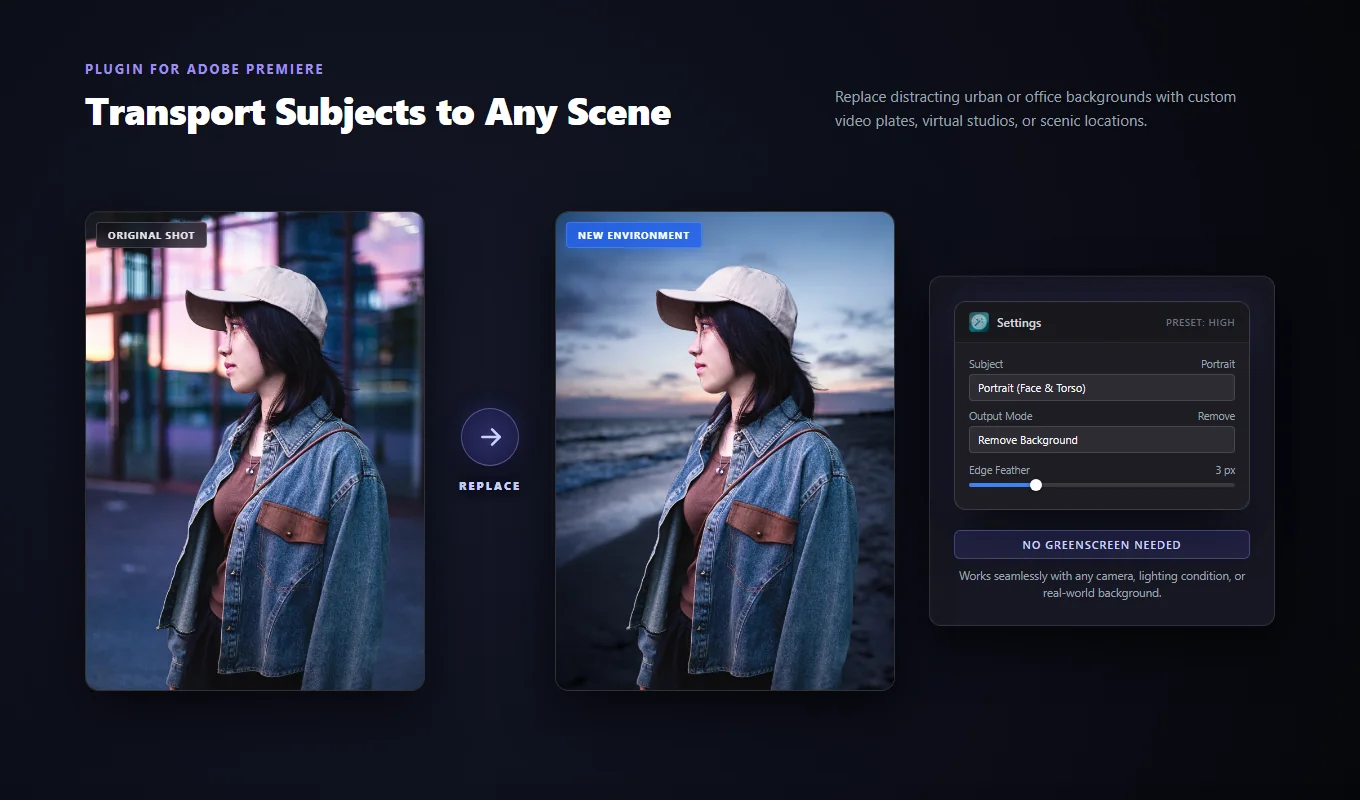
Prepare the clip
Trim your clip to the section you want to use and select it in the timeline. Start with a few seconds that include a head turn or a moving hand. You can check those edges before processing a longer recording.
Clear, well-lit footage is easier to work with. Hair against a wall of the same color, heavy motion blur, or someone walking in front of the presenter can make the separation less accurate.
Install Vakago AI Background Remover for Premiere from Adobe Exchange. The current extension requires Premiere Pro 25.6.5 or later. If you use an older release, check the version comparison for the legacy listing.
Isolate the person in four steps
- Select one video clip and open the Background Remover panel.
- Choose Subject. Use Portrait for a close-up of the head and shoulders. Choose People for a full body, a wider shot, or a group.
- Set Quality and click Preview first frame. High · More detail is useful for hair and clothing edges. Leave Model on From preset. The preview shows the first frame without changing your timeline.
- Set Mode to Remove background and click Apply Effect. Wait for processing to finish, then play the clip in Premiere.
Add your replacement image or video on a lower video track. For a presenter over slides, position the cutout so it leaves room for the slide content. For a new room or outdoor scene, check whether its lighting and camera angle fit the person.
Adjust hair and clothing edges
Keep Mask on Soft for hair and other partly transparent edges. Binary makes a solid cutoff and is better suited to a hard silhouette. Add feather gradually; a large amount can make the person look blurred against the new scene.
A thin line of the old background can often be reduced with a small negative Mask Expansion. If part of a sleeve or the hairline has been cut away, try a positive value. Change one control at a time. Strong Edge Smoothing can also remove fine hair.
For a close-up, compare Medium · Balanced with High · More detail. High can keep more detail and take longer, but difficult footage can still lose individual strands. The hair and fur guide explains these settings in more detail.
Play the clip before exporting
Watch the head turns, hands, and loose clothing. Preview first frame cannot show changes later in the clip. If the mask flickers, try Mask Deflicker on a short section. Increasing Temporal Window can steady the edge, although it may also soften fast movement.
You can adjust Applied Feather for the result you just applied without running the AI again. Use Update Applied Effects to make the change. Restore Original returns the clip to its earlier state if you want to start over.
The Background Remover handbook covers the controls. You can find more examples and both installation options on the AI Background Remover for Premiere Pro page.
Ready to use it on your footage?
Explore AI Background Remover