
Check your Adobe version first
For Premiere Pro 25.6.5 and later, install Vakago AI Background Remover for Premiere. This is the current extension described in the handbook and tutorials on this website.
For an earlier Premiere release, open the legacy AI Video Background Remover listing and check its compatibility details. This is also the relevant listing for legacy After Effects use. The new Premiere extension does not support After Effects.
Check the full version number in Premiere before installing. The current extension requires 25.6.5, so the year alone does not tell you whether it is compatible.
Compare the versions
| Question | Current Premiere extension | Legacy extension |
|---|---|---|
| Which application? | Premiere Pro 25.6.5 or later | Earlier Premiere and legacy After Effects use; check the listing |
| Local GPU acceleration? | WebGPU with CPU fallback in Auto mode | See the capabilities listed for the legacy version |
| Which subject presets? | Portrait, People, and General foreground · High quality (slow) | The presets described here belong to the current extension |
| Where are the instructions? | The handbook linked on this website | The documentation for the legacy listing |
Use the instructions for the version you install. Settings and saved results should not be assumed to transfer between the two extensions.
What you get with the new extension
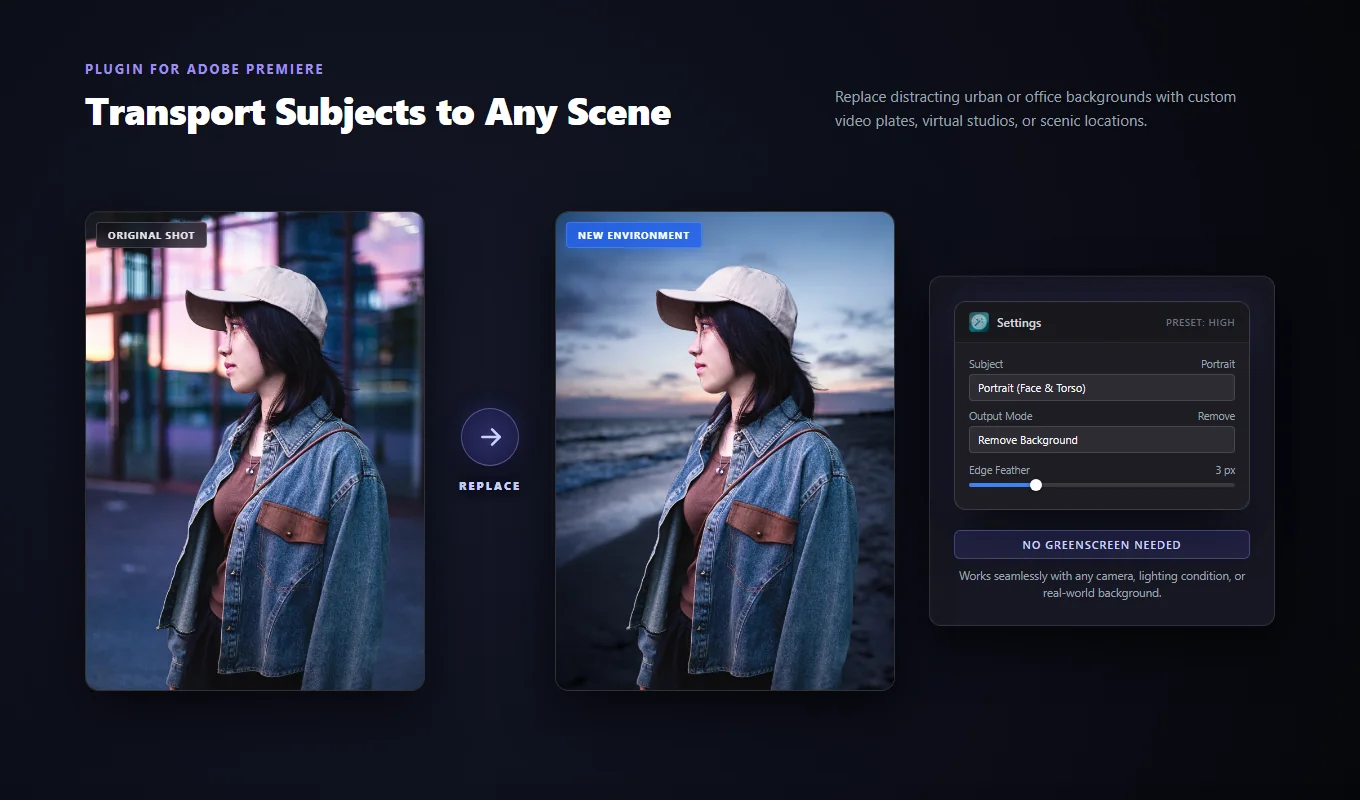
The new extension includes several optimized presets. Choose Portrait for close-ups, People for wider shots and full bodies, or General foreground · High quality (slow) for animals, products, objects, and mixed subjects. A building can also work when it has a clear foreground silhouette. General foreground does not let you pick one arbitrary object from the frame.
Leave Model on From preset and choose Low · Faster, Medium · Balanced, or High · More detail. You can preview the first frame before applying the effect to the clip.
Processing runs locally, with WebGPU acceleration on supported systems and CPU fallback in Auto mode. You can remove the background, blur it, or create a matte. After applying, supported feather and background blur controls can be changed without running the AI again.
Try the new extension on a short clip
Once you have installed the matching version, select a few seconds of footage and choose the Subject and Quality settings. Click Preview first frame, then Apply Effect. Play the processed clip to check movement that the still preview cannot show.
If you are trying the new version during an existing edit, test it on a copy of the project before changing the original. That gives you a result to compare with the version you already use.
Follow the Background Remover handbook for the current extension. The AI Background Remover for Premiere Pro page has examples and both installation links.
Ready to use it on your footage?
Explore AI Background Remover